User Guide
Everything Back Forty does, screen by screen. Start at the top if you've just installed it, or jump to the part you need.
On this page
First launch
There's no account to create. The welcome screen offers three ways in:
- Add my first system: start with whatever the house depends on most, like the furnace, the water heater, or the well.
- Import my service history: photograph the folder of old receipts or the notebook and let Back Forty file it (see Importing).
- Just look around: go straight to the empty Property tab.
The furnace, the water heater, the well. Get one system in with its spec sheet and the last service you remember, and the rest of the house is easy.
The Property tab: systems and equipment
Back Forty splits what you own into two lists:
| Section | What goes there | Kinds offered |
|---|---|---|
| Systems | What the house depends on, installed and staying put | Well, septic, generator, water softener, sump pump, water heater, HVAC |
| Equipment | The seasonal fleet, things with engines, hulls, and blades | Boat, outboard, snowblower, mower, tractor, sprinkler system, hot tub, pressure washer, chainsaw, portable generator |
Pick Other for anything we didn't list and type your own word for it. That word is what the app calls it from then on.
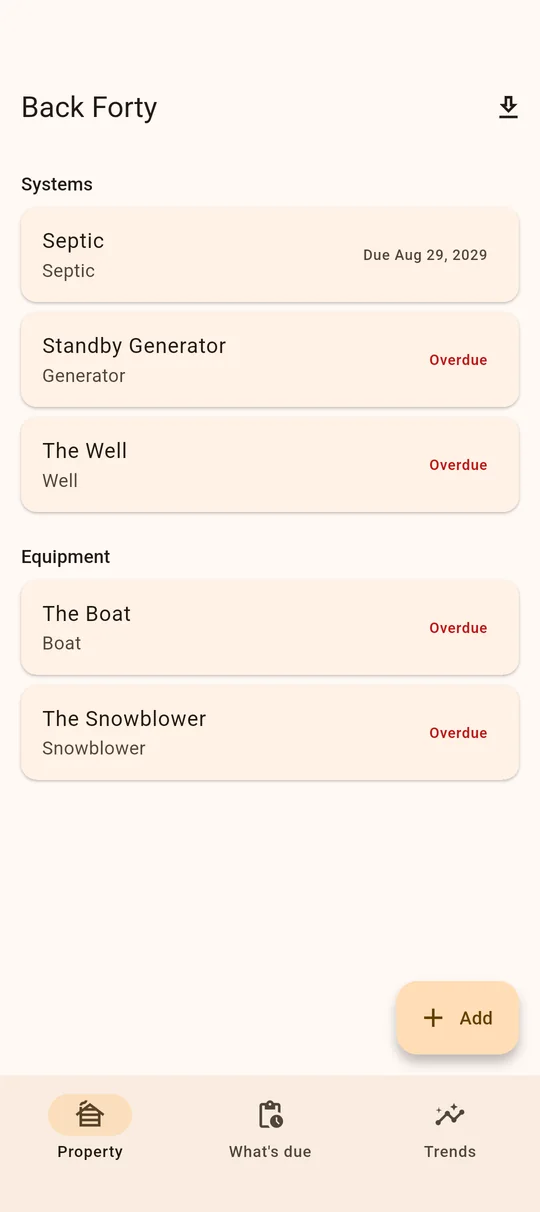
Tap Add at the bottom of the Property tab, choose system or equipment, and fill in what you know: a name ("The Well", "Dad's boat"), the kind, and for systems an install date, for equipment the year, model, and serial. Everything except the name is optional.
Each row on the Property tab shows its next due date, or Overdue in red when something on it is owed. Open the item and a banner at the top names what's overdue.
Spec sheets
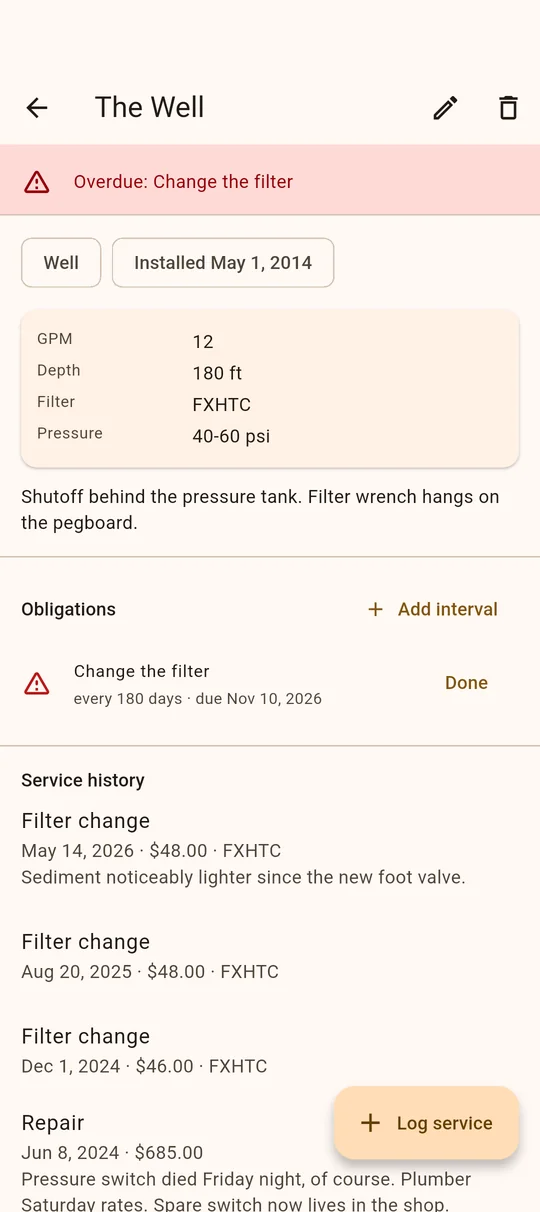
Every system and piece of equipment has a spec sheet: name-and-value pairs for the numbers you dig for every time. Capacity, GPM, filter model, oil weight, belt number, tank size, breaker number. Add as many lines as you like, in your own words.
The Notes field is for everything that isn't a number: shutoff locations, quirks, where the manual is, who serviced it last and whether you'd call them again.
Logging service
Open an item and tap Log service. The kind is pre-picked for what you're logging: the septic starts at Pump-out, the softener at Salt fill, the well at Filter change, the mower at Oil change. Change it if that's not what happened.
- Date and cost: what it was and when.
- Parts: "Filter FXHTC, 2× 5W-30". This is where next year's shopping list comes from.
- Notes: what you found, and what to check next time.
- Photos: the receipt, the part label, the inside of the panel. Take one or pick from your gallery.
Every item's service history lists its entries newest first, with costs. Tap an entry to edit it.
Intervals and What's due
An interval is a recurring obligation on one item: "change the sediment filter", "pump the tank", "winterize". Set it up two ways:
- Every N days: due N days after the last time it was done.
- Every fall (October 1) or every spring (April 1): due at the next anchor date. A fall job done in November isn't due again until next October.
An interval that has never been marked done counts as owed. When the job's done, tap Done on the interval's row on the item's page, and the next due date moves forward. Logging a service entry doesn't mark an interval by itself, so one filter change can't clear the wrong obligation.
The What's due tab lists every interval on the property, oldest debts first, so the season's to-do list is one screen.
Every interval is also a reminder: a local notification at 9 a.m. on the due date. They're scheduled on your phone, by your phone. The first time you add an interval, your phone asks for permission to show notifications.
Seasonal checklists
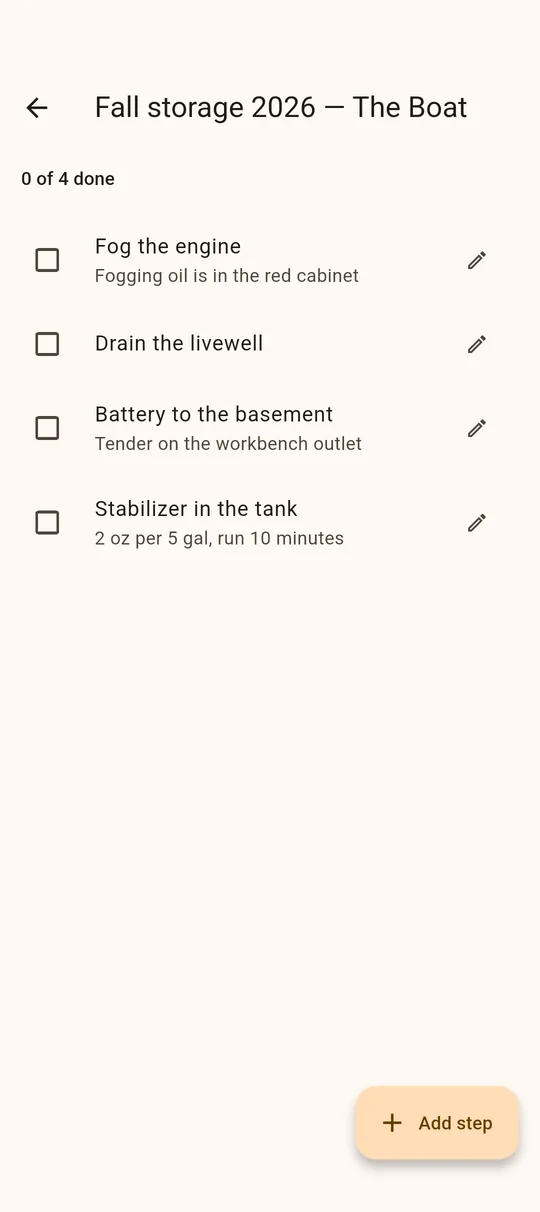
Equipment has two ritual lists: Fall storage and Spring start. Open one from the item's page and add the steps it takes: fog the cylinders, stabilize the fuel, pull the battery, grease the bearings.
Each step can carry a note, and the notes carry over to next year: where the fogging oil is, what the stabilizer mix was. Next season the list comes back unchecked, with your notes, ready to work through.
Scanning nameplates and receipts Pro
Nameplate
In the system or equipment composer, tap Scan nameplate and photograph the plate on the pump, the engine, or the panel. Back Forty reads the model, serial, and ratings it finds and shows you exactly what it read before anything is filled in. Fix anything the camera misread, then accept.
Receipt
In the service composer, tap Scan receipt. The total and date land in the entry ("Receipt says…") for you to confirm, and you can still edit every field before saving.
Text recognition runs on-device and works with no signal, which is useful in a basement or out in the shed. Photos and what's read from them stay on your phone.
Importing the folder of receipts Pro
Years of history in a folder or a notebook? Use Import service history from the welcome screen or the Property tab:
- Photograph the pages: up to 20 in one session. Lay each page flat, in good light, and fill the frame.
- Back Forty reads each page for the item, date, what was done, and cost. Pages it couldn't read are skipped and counted.
- Review every page. The review shows exactly what was read, and nothing is guessed. Fix anything the camera misread, and uncheck pages that don't belong.
- File them all at once. Each page becomes a service entry on the system or equipment whose name it matches. A name that matches nothing becomes new equipment, which you can rename or recategorize later. Pages without a date are filed under today, so check those.
Do another session of 20 for the next stack.
Trends, export and backup
The Trends tab shows:
- Service spend by year: what upkeep actually costs.
- Service events by year: how often the wrenches come out.
- Total cost of ownership per item, e.g. "The Well · 6 events · $1,240". This is the number that settles a repair-or-replace argument.
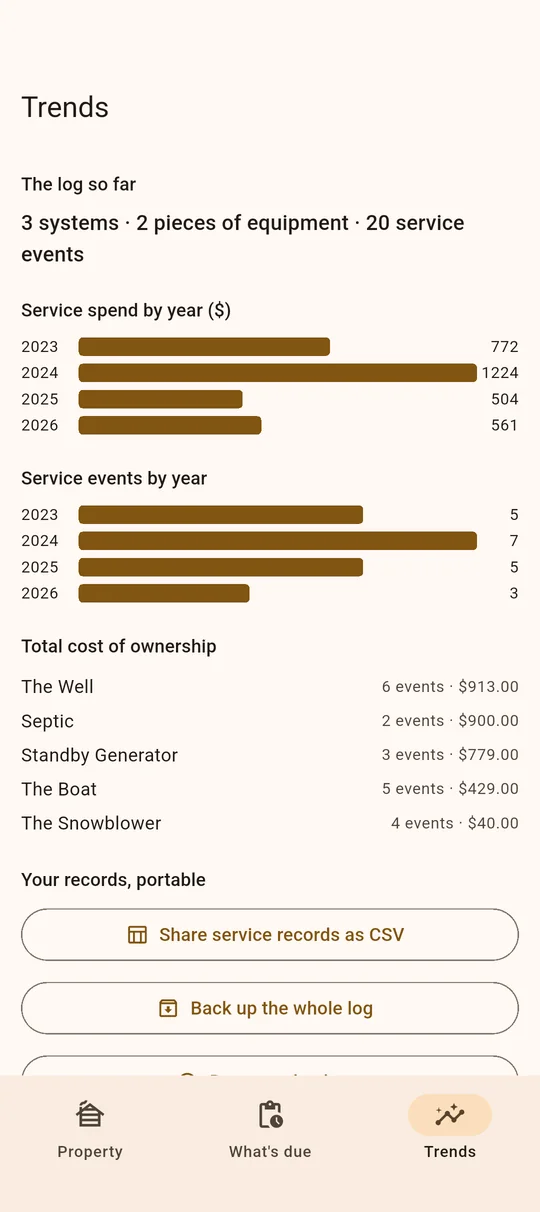
Under Your records, portable:
- Share service records as CSV: one spreadsheet of every service entry, for you, a buyer, or an insurance adjuster.
- Back up the whole log: one file with your systems, equipment, service history, intervals, checklists, and photos. Send it somewhere safe with the share sheet.
- Restore a backup: it replaces the log on this phone with the backup, after a confirmation.
Free and Pro
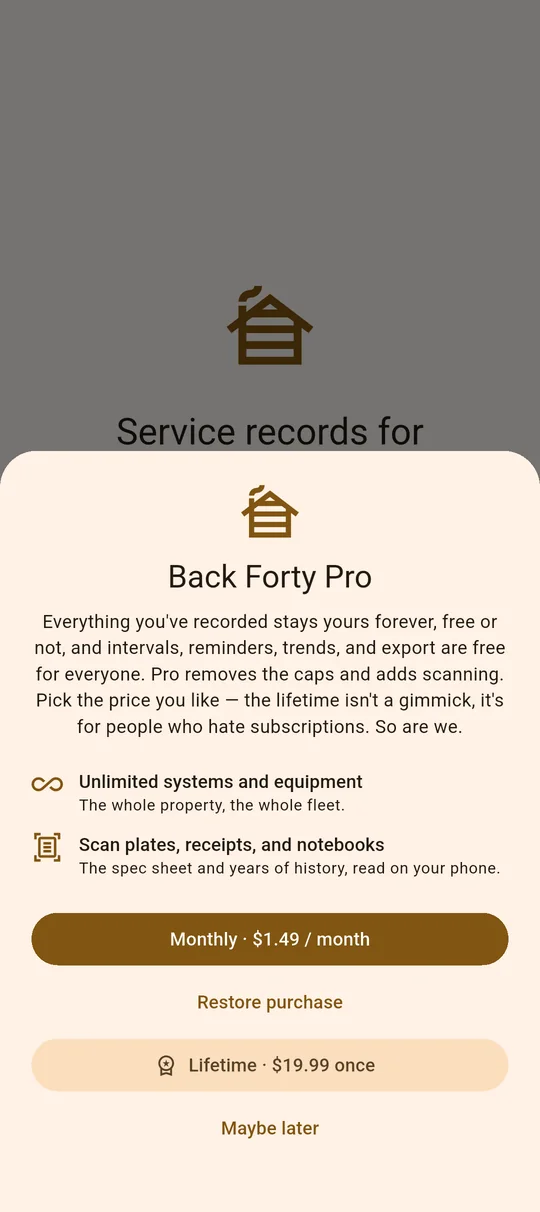
The first 3 systems and 2 pieces of equipment are free forever, with spec sheets, full service history, photos, and checklists. Intervals, What's due, reminders, Trends, export, and backup are free for everyone, however many items you have. Pro does two things: it removes the caps, and it adds scanning (nameplates, receipts, and the receipt-folder import).
Pro is $1.49/month or $19.99 once. Both unlock the same thing, so pick the price you like. Purchases go through Google Play or the App Store; Restore purchase on the Pro sheet brings it back on a new phone or after a reinstall.
Nothing you've logged is ever locked. If you drop back to free, everything you entered stays viewable and editable.